Edit a photo you already have
Halloween Photo Editor
Edit an existing photo into a cinematic Halloween portrait with costume, fog, lighting and color changes while keeping the face and pose intact.
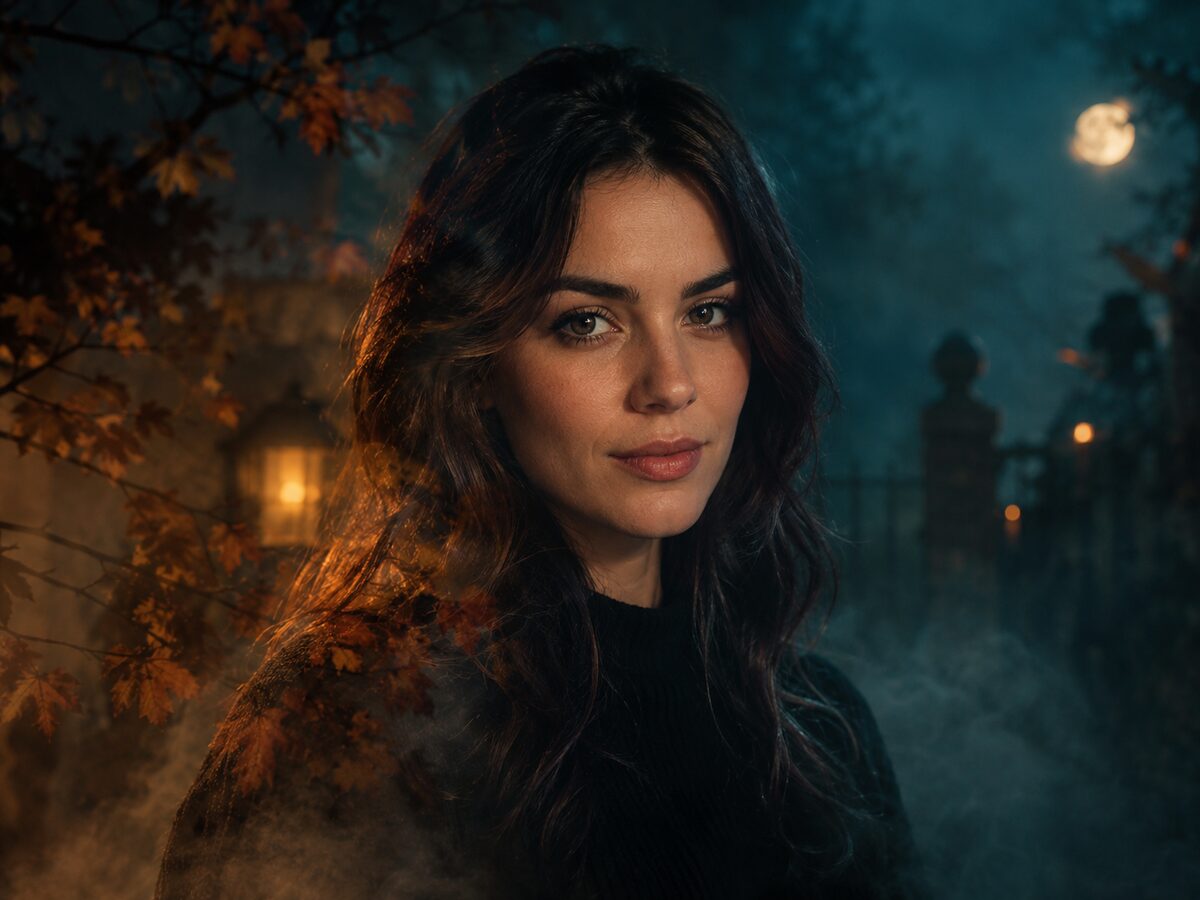
Most Halloween photo edits fail for the same reason: the effect is applied to the whole frame, so the face goes plastic and the background turns into wallpaper. A better edit separates the subject from the treatment. The face stays natural; the light, atmosphere and color carry the Halloween mood.
Use this recipe when you already have a good portrait and do not need a full costume. It is an editing workflow: color grade, fog, a subtle double exposure and a darker environment, with the original expression and skin texture preserved.
What changes
Color: deep teal shadows and warm amber highlights instead of a flat orange filter.
Atmosphere: low fog around the shoulders and a faint double exposure of autumn branches.
Background: a neutral studio wall becomes a moody night garden.
Face: skin texture, expression and identity remain the reference.
Prompt recipe
This is model input, so it stays in English. Change the wardrobe, scene and light lines; keep the identity and anatomy lines.
Use the uploaded photo as the primary reference. Preserve the subject's recognizable face, natural skin texture, expression, body proportions and pose. Apply a cinematic Halloween color grade with deep teal shadows and warm amber highlights. Add a thin layer of soft fog around the shoulders and a faint ghostly double exposure of bare autumn branches. Replace the background with a dark garden at night, keeping the subject's edges clean. Use editorial portrait photography, realistic skin detail and soft directional light. Do not turn the subject into a cartoon or change their age. Keep the same number of people as the uploaded photo. Avoid altered facial identity, extra limbs, duplicated fingers, distorted anatomy, text, logos and watermarks.
Negative prompt
Orange filter, heavy HDR, plastic skin, painted face, cartoon, horror gore, extra people, warped hands, text, logo, watermark.
Image-to-video prompt
Use the provided image as the exact starting frame. Create a five-second subtle Halloween portrait loop. Fog drifts slowly across the lower frame. The subject blinks once and holds a calm expression. A faint branch shadow moves at the edge of the light. Camera stays locked or pushes in very slightly. Keep the color grade and face unchanged. Maintain realistic motion, stable anatomy and consistent lighting. Do not change identity, replace the costume, add characters or introduce sudden scene cuts. No text or watermarks.
Try it in the browser
The generator below is already set to the right mode and prompt. Upload a photo, check the cost, then generate.
How to get a clean result
Start with a clean portrait
Use a photo with visible skin texture and a simple background. Heavy beauty filters remove the detail the edit needs.
Grade before you add props
Test the teal-and-amber grade on its own. If the face looks painted, reduce the grade language before adding fog.
Keep the effect at the edges
Fog and double exposure should sit around the subject, not over the eyes and mouth. Crop tighter if the effect competes with the face.
Best for
- Turning an existing portrait into a seasonal post
- A subtle Halloween look for a professional profile photo
- Testing a color grade before a real photo shoot
- Adding atmosphere without a full costume change
Limits to plan around
- This is not a precision mask editor; edges may need a second pass.
- The model cannot recover detail that is missing from a blurry source photo.
- Very dark source images give the color grade little to work with.
- Gore and graphic horror requests are outside the acceptable use policy.
Questions
What is the difference between this and a filter?
A filter applies one transform to every pixel. This workflow describes separate changes for color, fog, background and subject edges, so the face can stay natural while the scene changes.
Will it keep my original expression?
The prompt asks for the expression and pose to stay unchanged. Check the mouth and eyes at full size, because generative edits can still drift.
Can I use a photo from a phone?
Yes, if the face is sharp and evenly lit. A phone portrait with visible skin texture usually works better than a heavily filtered image.
Can I add a costume too?
Yes. Start with the costume generator recipe, then add the color grade and fog lines from this page. Keep the prompt under the generator limit.
Generate this look
The generator below is already set to the right mode and prompt. Upload a photo, check the cost, then generate.